You published a blog post last month. It includes three affiliate links. Your affiliate dashboard says you earned $47 in commissions. Good news.
But which post generated those sales? Which of the three links did the buyer click? Did they come from Google, Pinterest, or your email newsletter? Would a different call-to-action have produced more clicks? Is this post worth creating more content like it, or was $47 a fluke?
Without tracking, you can’t answer any of those questions. And without answers, you’re guessing about what works, which means you’re wasting time on content that doesn’t convert and missing opportunities to double down on content that does.
Here’s where most beginners hit a wall. They Google “affiliate tracking software” and find platforms charging $50 to $500 per month. Tools like Voluum, ClickMagick, and Everflow are powerful, but they’re built for affiliates running paid ad campaigns at scale. If you’re a blogger, YouTuber, or content creator earning $200 to $2,000 per month in affiliate commissions, paying $99/month for tracking software doesn’t make financial sense.
The good news: you can build a tracking system that gives you 80% to 90% of the data those expensive tools provide, using free and low-cost methods. This article shows you exactly how.
What You Actually Need to Track (And What You Can Ignore)
Before building a tracking system, get clear on what data actually helps you make better decisions. Beginners often try to track everything and end up overwhelmed by numbers that don’t lead to action.
The data that matters for content-based affiliate marketers:
1. Which pages generate affiliate clicks.
If you have 50 blog posts with affiliate links, knowing that 80% of your clicks come from 5 posts tells you exactly where to focus your optimization efforts. It tells you which content topics and formats resonate with buyers, and it shows you which posts deserve updates, better link placement, or more internal links pointing to them.
2. Which specific links get clicked.
On a single page with multiple affiliate links, some will dramatically outperform others. The link in your comparison table might get 10x more clicks than the link buried in paragraph 7. Knowing this lets you restructure your content to put high-performing link placements in more prominent positions.
3. Where your clicking visitors come from.
A visitor from Google searching “best budget standing desk” has different purchase intent than someone who clicked a Pinterest pin or a link in your email newsletter. Traffic source data reveals which channels send buyers versus which channels send browsers.
4. What your click-to-conversion rate looks like.
If Link A gets 500 clicks per month and generates $20 in commissions, while Link B gets 100 clicks and generates $80, Link B is 20x more efficient. That insight changes how you prioritize products and placement.
5. How performance changes over time.
Tracking trends helps you spot declining content before it flatlines, identify seasonal patterns you can plan around, and measure whether your optimization efforts are working.
The data you can safely ignore (for now):
- Individual user tracking. You don’t need to know that User #4,782 from Detroit clicked your blender link at 3:47 PM on a Tuesday. Aggregate data is what drives decisions.
- Real-time dashboards. Checking stats every hour doesn’t help. Weekly or monthly reviews are enough for content-based affiliate marketing.
- Multi-touch attribution modeling. Enterprise marketers obsess over whether the first click, last click, or middle click deserves credit. At your scale, knowing which page and which link generated the click is plenty.
- Heatmaps and session recordings. These tools (Hotjar, Microsoft Clarity) are useful for conversion optimization, but they’re a second-stage priority. Get basic click and conversion tracking running first.
The Free Tracking Stack: Tools You Already Have Access To
You don’t need to buy a single piece of software to build effective affiliate tracking. Here’s the stack, and every component is either free or costs less than $20/month.
Layer 1: Your Affiliate Program Dashboards
This is the tracking you already have, and most beginners underuse it.
Every affiliate program provides a dashboard with performance data. Amazon Associates, ShareASale, CJ Affiliate, Impact, Rakuten, ClickBank, and individual brand programs all report:
- Total clicks from your affiliate links
- Number of conversions (sales, signups, leads)
- Commission earned per conversion
- Conversion rate (clicks divided by conversions)
- Earnings per click (total commissions divided by total clicks)
- Product-level breakdown of what was purchased
What most beginners miss: Many of these dashboards let you create multiple tracking IDs or sub-IDs. This is the simplest way to track which content generates which sales, without installing anything.
Amazon Associates example:
In your Amazon Associates account, you can create up to 100 tracking IDs. Create a separate tracking ID for each major content category or individual high-traffic post:
blogname-standingdesk(for your standing desk review)blogname-headphones(for your headphone comparison)blogname-email(for links in your email newsletter)blogname-youtube(for links in your video descriptions)
When generating an affiliate link, select the relevant tracking ID. Your Amazon reports will then show clicks and earnings broken down by tracking ID, which means broken down by content source.
ShareASale example:
ShareASale supports deep linking with custom tracking parameters. When building a link, you can add a custom value to the afftrack parameter:
The afftrack value appears in your ShareASale transaction reports, letting you trace each sale back to a specific piece of content.
Impact example:
Impact allows you to append SubId parameters to your tracking links. You can use up to 3 SubId fields:
In your Impact reports, you can filter by SubId to see performance by content piece, link placement, and traffic source.
The principle is the same across all programs: use sub-tracking parameters to tag your links with information about where they’re placed. This turns your existing affiliate dashboards into content-level tracking systems without any additional tools.
Layer 2: Google Analytics 4 (Free)
Google Analytics is free, and it’s the most powerful analytics platform most affiliate marketers will ever need. If you’re running a website and don’t have GA4 installed, that should be your first priority before anything else in this guide.
What GA4 tells you that affiliate dashboards don’t:
- Which pages on your site get the most traffic
- Where that traffic comes from (search engines, social media, email, direct, referrals)
- How long visitors spend on each page
- What visitors do before and after visiting a page with affiliate links
- Which devices your audience uses (mobile vs. desktop vs. tablet)
- Geographic distribution of your audience
- Site search queries (what people search for on your site)
Setting up affiliate link click tracking in GA4:
GA4 can track outbound link clicks automatically if you enable Enhanced Measurement. Here’s how:
Step 1: In your GA4 property, go to Admin > Data Streams > select your web stream.
Step 2: Under Enhanced Measurement, make sure “Outbound clicks” is toggled on.
Step 3: GA4 will now automatically track clicks on links that point to external domains (which includes your affiliate links that redirect to Amazon, ShareASale, etc.).
Viewing outbound click data:
Go to Reports > Engagement > Events. Look for the click event. You can drill down to see which outbound URLs were clicked and which pages those clicks originated from.
For more detailed analysis, go to Explore > create a Free Form exploration with these dimensions:
- Page path (which page the click came from)
- Link URL (which outbound link was clicked)
- Session source/medium (where the visitor came from originally)
And these metrics:
- Event count (number of clicks)
- Total users (number of unique people who clicked)
This gives you a report showing exactly which pages drive the most affiliate clicks, which affiliate links get clicked on each page, and which traffic sources bring visitors who actually click.
The limitation: GA4 tracks clicks, not conversions. It can tell you that 200 people clicked your Amazon affiliate link from your standing desk review, but it can’t tell you how many of those 200 actually purchased something on Amazon. For conversion data, you still need your affiliate program dashboard. The power is in combining both data sources.
Layer 3: UTM Parameters (Free)
UTM parameters are tags you add to the end of URLs that tell Google Analytics exactly where a click came from. They’re free, they require no software, and they give you granular tracking data that transforms how you understand your traffic.
The five UTM parameters:
- utm_source – Where the traffic is coming from (e.g., “newsletter,” “twitter,” “pinterest”)
- utm_medium – The marketing medium (e.g., “email,” “social,” “affiliate”)
- utm_campaign – The specific campaign name (e.g., “standing-desk-review,” “black-friday-2026”)
- utm_term – (Optional) Used for paid search keywords; less common in affiliate marketing
- utm_content – (Optional) Used to differentiate between link placements (e.g., “header-link,” “comparison-table,” “bottom-cta”)
How to use UTM parameters for affiliate tracking:
UTM parameters work best for tracking traffic TO your own site from external sources (email, social media, ads). They help you understand which traffic sources bring the most valuable visitors, meaning visitors who end up clicking your affiliate links.
Example 1: Email newsletter tracking
When you share a blog post link in your email newsletter:
In GA4, you can then filter your outbound click data by users who arrived via newsletter / email to see whether email subscribers click affiliate links at higher rates than organic search visitors.
Example 2: Social media post tracking
When you share your blog post on Twitter:
And the same post shared on Pinterest:
Now you can compare: do Twitter visitors or Pinterest visitors click your affiliate links more often? This data directly informs where you spend your promotional energy.
Example 3: Internal link tracking with utm_content
If you’re linking to the same affiliate content from multiple places on your own site, you can use utm_content to track which internal link drives the most traffic:
vs.
Building UTM URLs:
Google provides a free UTM builder tool: the Campaign URL Builder. Enter your URL and the parameter values, and it generates the tagged URL automatically. You can bookmark the tool for quick access.
Alternatively, you can construct UTM URLs manually by appending the parameters to any URL with a ? for the first parameter and & for each subsequent one:
UTM best practices:
- Use consistent naming conventions. Decide on lowercase, no spaces (use hyphens), and stick with it. “Newsletter” and “newsletter” are treated as different sources in GA4.
- Don’t use UTM parameters on internal links between pages on your own site (except for specific tracking purposes). They create new sessions in GA4 and distort your traffic data. Use them primarily for external traffic sources pointing TO your site.
- Keep a UTM tracking spreadsheet documenting every tagged URL, its parameters, and where it’s used. This prevents inconsistencies and makes historical analysis possible.
Layer 4: WordPress Link Management Plugin (Free or Low-Cost)
If you’re on WordPress, a link management plugin like ThirstyAffiliates or Pretty Links adds a tracking layer directly on your site. (These plugins were covered in detail in the previous article in this series, so this section focuses on their tracking capabilities.)
What link management plugins track:
- Total clicks per managed link
- Clicks over time (daily, weekly, monthly trends)
- Referring page (which page on your site the click came from)
- IP address of the clicker (useful for spotting bot traffic or click fraud)
- Browser and device information
- Unique vs. repeat clicks
Why this layer matters:
Your affiliate program dashboard tells you that you got 300 clicks this month. Google Analytics tells you that 500 people visited your standing desk review from organic search. But neither tells you specifically that 87 of those visitors clicked the affiliate link in your comparison table vs. 34 who clicked the text link in paragraph 4.
A link management plugin fills this gap. By creating separate managed links for each placement (one for the comparison table, one for the text link, one for the sidebar), you get placement-level tracking within a single page.
Setting up placement tracking with managed links:
Create separate managed links for the same product when you want to track different placements:
yourdomain.com/recommend/standing-desk-review-table(for the comparison table link)yourdomain.com/recommend/standing-desk-review-text(for the in-text link)yourdomain.com/recommend/standing-desk-review-cta(for the call-to-action button)yourdomain.com/recommend/standing-desk-email(for the link in your newsletter)
All four links point to the same Amazon affiliate URL (with appropriate sub-tracking IDs), but your plugin tracks each one independently. After a month, you can see exactly which placement drives the most clicks.
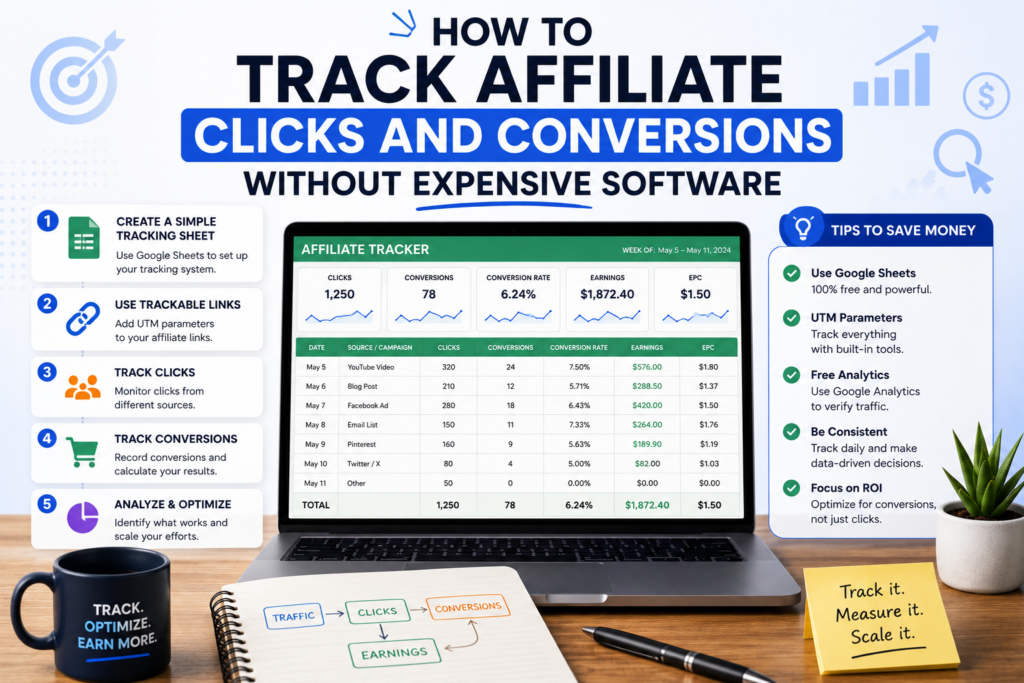
Layer 5: A Simple Tracking Spreadsheet (Free)
This is the layer that ties everything together. Your affiliate dashboard, Google Analytics, UTM data, and link plugin each provide a piece of the picture. A tracking spreadsheet combines them into a single view.
Setting up your tracking spreadsheet:
Create a Google Sheets or Excel workbook with these tabs:
Tab 1: Monthly Performance Overview
Columns:
- Month
- Total site traffic (from GA4)
- Total affiliate clicks (from link plugin or GA4 outbound clicks)
- Site-wide click-through rate (clicks / traffic)
- Total conversions (from affiliate dashboards)
- Total commissions earned
- Earnings per click (commissions / clicks)
- Top-performing page
- Top-performing product
- Notes
Fill this in monthly. Over 6 to 12 months, you’ll see trends that are invisible in any single tool: seasonal patterns, the impact of content investments, and whether your earnings per click is improving or declining.
Tab 2: Page-Level Performance
Columns:
- Page URL
- Page title
- Monthly traffic (from GA4)
- Affiliate clicks from this page (from link plugin)
- Page-level CTR (clicks / traffic)
- Known conversions from this page (from affiliate sub-tracking)
- Estimated monthly revenue from this page
- Last updated date
- Optimization notes
This tab answers the most actionable question in affiliate marketing: which pages make money? Sort by estimated revenue, and your top 10 pages become your optimization priority list.
Tab 3: Link Performance
Columns:
- Managed link slug
- Product name
- Affiliate program
- Commission rate
- Monthly clicks (from link plugin)
- Monthly conversions (from affiliate dashboard, matched by sub-tracking ID)
- Revenue per click
- Placement location(s)
- Notes
This tab reveals which products and which link placements produce the best returns.
Tab 4: Traffic Source Performance
Columns:
- Traffic source (Google organic, Pinterest, email, etc.)
- Monthly visitors from this source (from GA4)
- Affiliate clicks from visitors via this source (from GA4, filtered by source)
- Source-level CTR
- Estimated conversions from this source
- Notes
This tab tells you which traffic channels send the most valuable visitors, meaning visitors who actually click affiliate links and buy things.
How to maintain the spreadsheet:
Block 30 minutes on the first of each month. Pull numbers from GA4, your link plugin, and your affiliate dashboards. Fill in the spreadsheet. Review trends. Add notes about anything notable (a post that spiked in traffic, a product that stopped converting, a traffic source that’s growing).
This monthly ritual takes less time than an episode of a TV show, and the cumulative data becomes one of the most valuable assets in your affiliate business.
Putting It All Together: The Complete Free Tracking Workflow
Here’s how all five layers work together from the moment you publish a new piece of content to the moment you analyze its performance.
When You Publish a New Post With Affiliate Links
Step 1: Create managed links.
For each affiliate product mentioned in the post, create a managed link in ThirstyAffiliates or Pretty Links. Use descriptive slugs and assign to the appropriate category.
If you want placement-level tracking, create separate managed links for each placement (comparison table, in-text, CTA button).
Step 2: Add sub-tracking IDs to your affiliate URLs.
In the destination URL of each managed link, append the relevant tracking parameter for your affiliate program:
- Amazon: Use a dedicated tracking ID for this post
- ShareASale: Add
afftrack=post-name-placement - Impact: Add
SubId1=post-name&SubId2=placement
Step 3: Insert managed links into your content.
Use your managed link URLs (e.g., yourdomain.com/recommend/product-name) instead of raw affiliate links.
Step 4: Ensure GA4 outbound click tracking is active.
Verify that Enhanced Measurement with outbound clicks is still toggled on (it should be, from your initial setup).
When You Promote the Post
Step 5: Create UTM-tagged URLs for each promotional channel.
When sharing the blog post link on social media, in emails, or in other promotional channels, add UTM parameters:
- Email newsletter:
?utm_source=newsletter&utm_medium=email&utm_campaign=post-name - Twitter:
?utm_source=twitter&utm_medium=social&utm_campaign=post-name - Pinterest:
?utm_source=pinterest&utm_medium=social&utm_campaign=post-name
When You Review Performance (Monthly)
Step 6: Pull data from each source.
From GA4:
- Total traffic to the post
- Traffic by source/medium
- Outbound click events from the post
From your link management plugin:
- Clicks per managed link
- Clicks by placement
From your affiliate program dashboards:
- Conversions and revenue filtered by your sub-tracking IDs
- Earnings per click for the tracking IDs associated with this post
Step 7: Record in your tracking spreadsheet.
Enter the numbers in the appropriate tabs. Compare against previous months and against other posts.
Step 8: Identify actionable insights.
- If the post gets traffic but low affiliate CTR → Improve link placement, add more compelling calls-to-action, or test different product recommendations
- If the post gets clicks but low conversions → The product might not resonate with your audience, the price point might be too high, or the landing page might not be converting well (which is outside your control, but you can switch to a different product)
- If a specific traffic source drives higher-than-average CTR → Invest more in that traffic channel for similar content
- If one link placement dramatically outperforms others → Apply that placement pattern to other posts
Tracking Conversions: The Hard Part (And How to Handle It)
Here’s an honest truth about affiliate tracking: tracking clicks is easy. Tracking conversions back to specific content is harder, and no free tool gives you a complete picture.
The reason: the conversion happens on someone else’s website (Amazon, the merchant’s site, etc.). You don’t have access to their analytics. You can’t install your tracking pixel on their checkout page. The affiliate program’s dashboard tells you that a sale happened, but the connection between “this specific visitor from this specific page” and “this specific purchase” is often incomplete.
What you can do:
Method 1: Sub-Tracking ID Correlation
This is the most reliable free method. By using unique sub-tracking IDs for each piece of content (as described earlier), you create a direct link between your content and your conversions.
When your Amazon Associates report shows that tracking ID blogname-standingdesk generated 8 sales and $36 in commissions this month, you know those sales came from your standing desk review. When tracking ID blogname-headphones generated 3 sales and $12, you know those came from your headphone comparison.
The granularity depends on how many sub-tracking IDs you create. One per major page gives you page-level conversion data. One per link placement gives you placement-level data. The trade-off is management complexity: more IDs mean more data, but they require more organization.
Method 2: Time-Based Correlation
When you don’t have sub-tracking IDs set up (or your affiliate program doesn’t support them), you can use timing to correlate clicks with conversions.
How it works:
Your link management plugin records when clicks happen. Your affiliate dashboard records when conversions happen. By comparing the timestamps, you can often match a conversion to the click that preceded it.
Example: Your affiliate dashboard shows a sale at 2:15 PM on Tuesday. Your link plugin shows that someone clicked your managed link for that product at 2:12 PM on Tuesday from your standing desk review page. That’s likely the same person.
This method isn’t perfect. It breaks down when you have multiple clicks close together in time, or when there’s a significant delay between click and purchase. But for lower-traffic sites where clicks are spaced out, it provides a reasonable approximation.
Method 3: Revenue-Per-Click Estimation
When you can’t directly attribute individual conversions to specific content, you can use aggregate data to estimate each page’s revenue contribution.
The formula:Estimated page revenue = Page clicks × Overall earnings per click
Example:
Your affiliate program shows total monthly earnings of $500 from 2,000 total clicks (earnings per click = $0.25). Your standing desk review generated 400 of those clicks. Estimated revenue from that page = 400 × $0.25 = $100.
This method assumes all clicks have equal value, which isn’t perfectly true (some products pay higher commissions than others). But it provides a directionally useful estimate when you can’t get exact page-level conversion data.
Refinement: If you use separate tracking IDs per product category, you can calculate earnings per click at the category level rather than site-wide, which improves accuracy.
Method 4: Isolated Content Tests
When you really need to know whether a specific page or link converts, you can run a temporary isolation test.
How it works:
For one week, remove the affiliate link from all pages except the one you’re testing. During that week, every conversion in your affiliate dashboard for that product can be attributed to the test page. After the test, restore the links to their normal placements.
This method is labor-intensive and sacrifices potential commissions during the test period (because you’ve removed links from other pages). Use it sparingly, and only for your highest-traffic, highest-potential content where the data is worth the temporary revenue loss.
Free and Low-Cost Tools Worth Adding to Your Stack
Beyond the core five layers already described, a few additional free tools can fill specific tracking gaps.
Google Search Console (Free)
Search Console tells you which search queries bring visitors to your affiliate content pages. This data reveals the search intent behind your traffic, which helps you understand whether visitors are arriving in a buying mindset.
How to use it for affiliate tracking:
Go to Performance > Pages. Find your affiliate content pages and look at the queries driving traffic to each one.
If your standing desk review ranks for “best standing desk under $400,” those visitors have clear purchase intent. If it ranks for “are standing desks bad for your knees,” those visitors are researching, not buying. This distinction helps explain why some pages have high CTR on affiliate links and others don’t, even with similar traffic volumes.
Bitly (Free Tier Available)
Bitly is a link shortener that provides click tracking. While your link management plugin handles on-site tracking, Bitly is useful for tracking links you share outside your website: social media posts, forum comments, guest post bios, etc.
How to use it:
Create Bitly shortened links for your blog posts (not for direct affiliate links) when sharing them on social media or other platforms. Bitly tracks total clicks, clicks over time, and geographic data. This supplements your UTM tracking by giving you a quick-glance view of how external promotions perform.
Free tier limitations: Bitly’s free plan limits you to a set number of links per month and provides basic analytics. For most beginners, the free tier is sufficient.
Microsoft Clarity (Free)
Clarity is a free user behavior analytics tool from Microsoft. It provides heatmaps and session recordings that show how visitors interact with your pages.
How to use it for affiliate tracking:
Install Clarity on your site and use heatmaps to see where visitors click on your affiliate content pages. You’ll see whether people scroll past your affiliate links without noticing them, whether your call-to-action buttons attract attention, and whether your comparison tables get more interaction than in-text links.
This visual data helps you optimize link placement. If your heatmap shows that 70% of visitors never scroll to the bottom of your review where your main affiliate link lives, you know to move that link higher in the content.
Privacy consideration: Clarity records user sessions. Make sure your privacy policy covers session recording, and configure Clarity’s masking settings to avoid capturing sensitive user input.
Google Looker Studio (Free)
Looker Studio (formerly Google Data Studio) lets you build custom dashboards that pull data from GA4, Google Search Console, Google Sheets, and other sources. You can create a single visual dashboard that displays all your affiliate tracking data in one place.
How to use it:
Connect your GA4 property and your tracking spreadsheet (via Google Sheets) to Looker Studio. Build a dashboard with charts showing:
- Monthly traffic and click trends
- Top pages by affiliate clicks
- Traffic source breakdown
- Click-through rate by page
- Revenue trends over time
The initial setup takes 1 to 2 hours, but once built, the dashboard updates automatically and saves you the time of manually pulling data from multiple sources each month.
Advanced Free Tracking Techniques
Technique 1: Google Analytics Event Tracking for Specific Buttons
If you want to track clicks on specific buttons or call-to-action elements (not just outbound links in general), you can set up custom events in GA4 using Google Tag Manager (free).
Use case: You have a “Check Price on Amazon” button on your review pages. You want to know exactly how many clicks that specific button gets, separate from other outbound links on the page.
Setup outline:
- Install Google Tag Manager on your site
- Create a trigger that fires when someone clicks your specific button (identified by its CSS class, ID, or link URL pattern)
- Create a GA4 event tag that sends a custom event (e.g.,
affiliate_button_click) with parameters for the product name and page - Publish the tag
In GA4, you’ll see affiliate_button_click events with the product name and originating page, giving you precise button-level tracking.
Google Tag Manager has a learning curve, but plenty of free tutorials walk through the setup process. Once configured, it runs automatically without ongoing maintenance.
Technique 2: Content Grouping in GA4
GA4 allows you to group pages into content groups, which is useful for analyzing affiliate performance by content type.
How to set it up:
Create content groups for your different content types:
- “Product Reviews”
- “Comparison Posts”
- “Buying Guides”
- “Tutorial Content”
- “Resource Pages”
You can assign content groups through Google Tag Manager or by modifying your GA4 configuration tag to include a content_group parameter based on the page URL or category.
What this reveals:
Instead of analyzing 50 individual pages, you can see aggregate performance by content type. “Do my comparison posts generate more affiliate clicks per visitor than my single-product reviews?” That insight shapes your entire content strategy.
Technique 3: Custom Channel Groupings for Traffic Quality Analysis
GA4’s default channel groupings (Organic Search, Social, Email, etc.) are useful, but you can create custom channel groupings that better reflect your specific traffic sources.
Example custom channels:
- “Pinterest Organic” (separate from other social)
- “Email Newsletter” (separate from other email)
- “YouTube Description Links” (separate from other referral)
- “Reddit/Forum Traffic” (separate from other referral)
- “Guest Post Traffic” (referrals from specific domains where you’ve published guest posts)
Custom channel groupings let you compare affiliate click rates across hyper-specific traffic segments, revealing which promotional channels send the most purchase-ready visitors.
Technique 4: Cohort-Based Performance Analysis
Instead of looking at aggregate monthly numbers, track how different cohorts of content perform over time.
Example: Group your content by publication month. Track how January 2026 content performs in month 1, month 3, month 6, and month 12 after publication. Do the same for February content, March content, etc.
This reveals your content’s earning curve: how quickly new posts start generating affiliate clicks, when they peak, and how long they maintain their performance. If your content consistently peaks at month 4 and declines after month 8, you know exactly when to schedule content updates for maximum impact.
Track this in your spreadsheet with a tab dedicated to cohort analysis. The data accumulates slowly (you need at least 6 months of content to start seeing patterns), but the insights are extremely valuable for long-term content planning.
Building a Tracking Routine That Sticks
The best tracking system is the one you actually maintain. A complicated setup that you abandon after two weeks is worth less than a simple spreadsheet you update consistently.
The Weekly Check (5 Minutes)
Every week, glance at two things:
- Your link plugin’s click dashboard. Look for any unusual spikes or drops. A sudden spike might indicate a post going viral or getting picked up by a high-traffic site. A sudden drop might indicate a broken link or a Google ranking loss.
- Your affiliate program dashboards. Check for new conversions. Note any products that are selling better or worse than expected.
You’re not analyzing deeply here. You’re scanning for anomalies. If everything looks normal, move on. If something looks unusual, note it for your monthly review.
The Monthly Review (30 to 45 Minutes)
On the first of each month:
- Pull traffic data from GA4 for the previous month
- Pull click data from your link management plugin
- Pull conversion and commission data from your affiliate dashboards
- Update your tracking spreadsheet (all tabs)
- Compare this month to last month and to the same month last year (once you have a year of data)
- Identify your top 3 performing pages and your 3 biggest opportunities (pages with traffic but low CTR, or pages with high CTR but low traffic)
- Write 2 to 3 specific action items based on what the data shows
Example action items:
- “Standing desk review has high traffic but 2% CTR. Move the affiliate link above the fold and add a comparison table. Recheck in 30 days.”
- “Pinterest traffic converts at 2x the rate of organic search traffic. Create 5 new pins for top-performing posts this week.”
- “Headphone comparison link in the sidebar gets zero clicks. Remove it and replace with a link to the comparison page instead.”
The Quarterly Deep Dive (60 to 90 Minutes)
Every three months, go deeper:
- Audit all active affiliate links for broken URLs, discontinued products, and outdated information
- Review commission rates across your programs (rates change, and you might be leaving money on the table by using a lower-commission program when a higher one is available)
- Analyze content performance trends over the full quarter
- Evaluate your traffic source mix and identify channels worth investing more effort in
- Check for new affiliate programs that might offer better terms for your top-performing products
- Update your content on top-performing pages (refresh product information, add new comparisons, improve calls-to-action)
When Free Tracking Isn’t Enough
There comes a point where free tools hit their ceiling. Here’s how to recognize when it’s time to invest in paid tracking software, and what’s worth paying for at each stage.
You’ve outgrown free tracking when:
- You’re running paid advertising to affiliate content and need to track ROI per ad dollar
- You’re managing 500+ affiliate links across multiple programs and multiple sites
- You need real-time conversion tracking with postback URLs
- You’re earning $5,000+/month and the opportunity cost of imprecise tracking exceeds the cost of paid software
- You need automated alerts for broken links, conversion drops, or anomaly detection
- You’re split testing landing pages and need statistical significance calculations
Mid-range options ($20 to $50/month):
- Lasso ($40/month) – WordPress plugin built for affiliate marketers. Link management, product displays, link opportunity detection, and performance tracking in one tool.
- AffiliateWP (starts around $150/year) – If you run your own affiliate program, this tracks your affiliates. Different use case, but worth mentioning.
- ThirstyAffiliates Pro ($99/year) – Upgrades the free ThirstyAffiliates with auto-linking, link health checks, ge